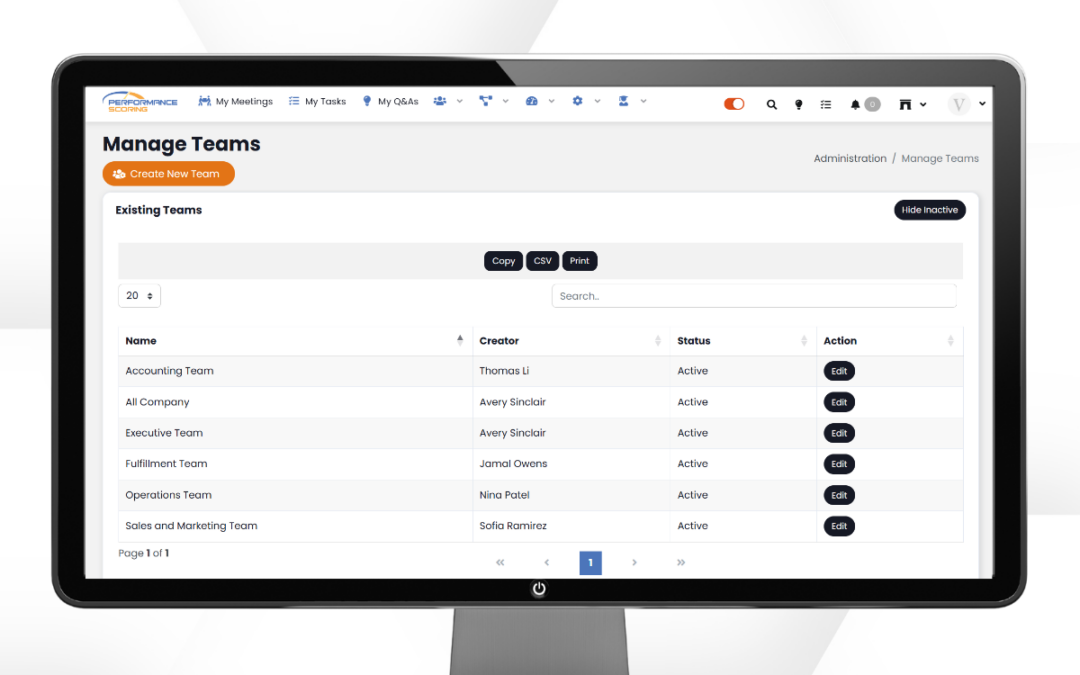
Teams in Performance Scoring help organize users, streamline meeting management, and improve visibility across departments and leadership groups. Setting up Teams correctly ensures your meetings, dashboards, and execution tools stay aligned with your organizational structure.
This guide walks through how to edit and manage Teams inside Performance Scoring.
Accessing Manage Teams
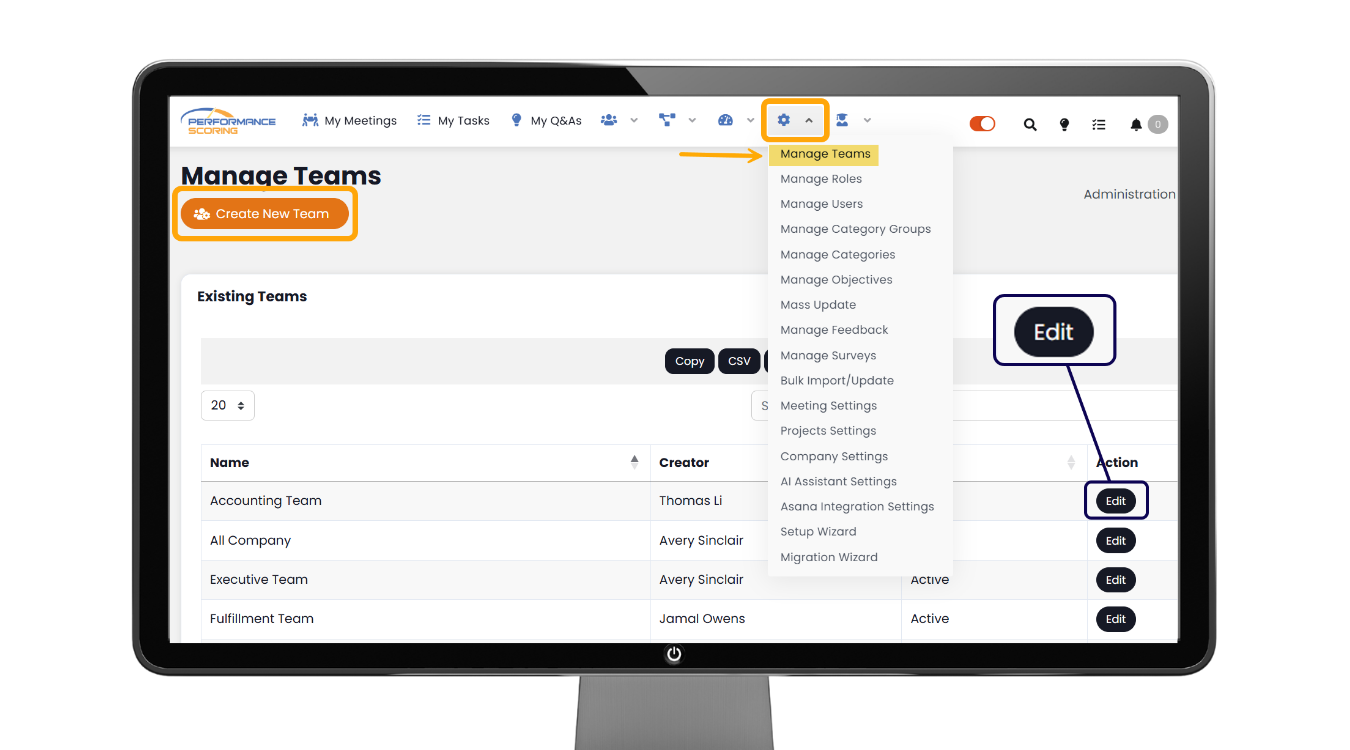
To set up your Teams in Performance Scoring, navigate to:
Administration → Manage Teams
Here, you will see a default list of Teams that come pre-loaded in the platform, such as:
- Executive Team
- Leadership Team
- Department-based Teams (if applicable)
These default Teams provide a starting point for organizing your organization.
Editing a Team
To update an existing Team:
- Locate the Team you want to edit (ex: Executive Team)
- Click the Edit button
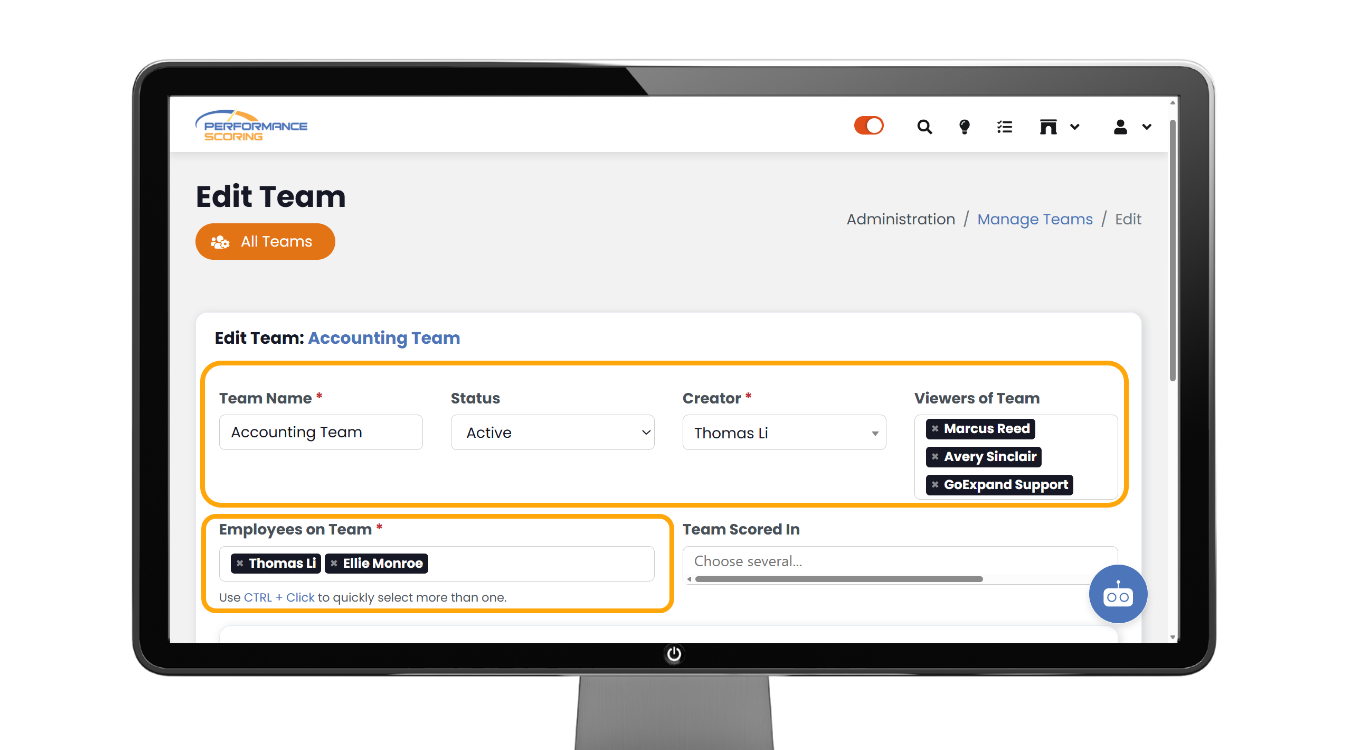
This opens the Edit Team screen where you can manage ownership and membership.
Team Creator (Owner)
The Creator field represents the owner or overseer of the Team.
For leadership Teams, this is typically:
- The Visionary
- The CEO
- The leadership facilitator
Assigning the correct Creator ensures accountability for managing the Team structure over time.
Team Viewers
Viewers are users who can see the Team but are not necessarily members of it.
This is useful for:
- Executive visibility
- Cross-department oversight
- Admin-level reporting access
Viewers can observe Team information without being assigned as part of the working group.
Adding Employees to a Team
To add employees as Team members:
- Click inside the Employees box
- Begin typing the user’s name
- Select the correct person from the dropdown
- Press Enter to add them
Repeat as needed until all Team members are included.
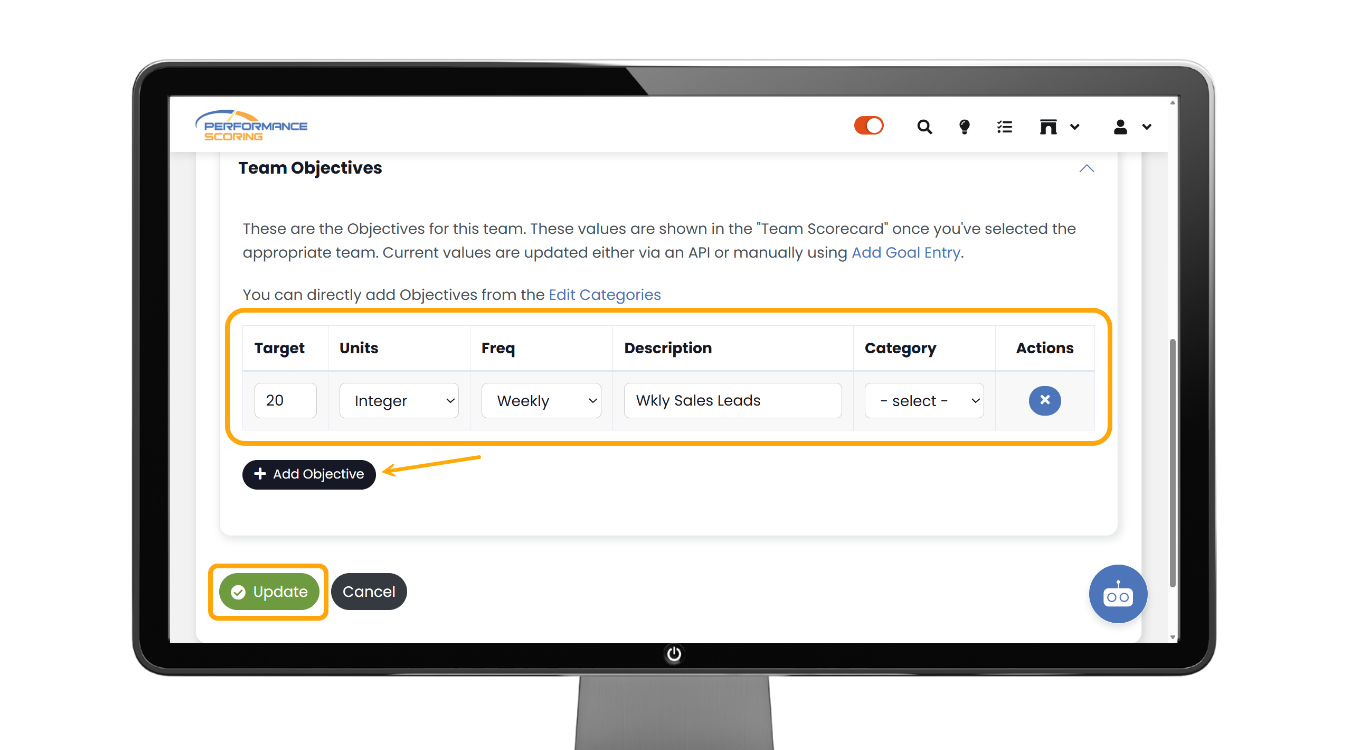
Once finished, click Update to save changes.
Team Metrics (Use with Caution)
GoExpand includes an option for Team Metrics, which apply the same Metric to every individual on the Team.
Team Metrics are uncommon and should typically be left unchanged until your organization has a deeper understanding of Metric structure and reporting needs.
Best Practice:
Leave Team Metrics alone early in rollout unless advised by your Performance Scoring support team or implementer.
Final Reminder
Teams help strengthen organization-wide clarity by supporting:
- Meeting group management
- Department dashboards
- Visibility and reporting
- EOS® alignment across leadership and execution groups
Once your Teams are configured, GoExpand becomes easier to navigate and scale as your organization grows.
>Up Next: Additional Features, Tips & Tricks
Additional reads and references:
Atlassian – Team Roles and Responsibilities Explained
https://www.atlassian.com/team-playbook/plays/roles-and-responsibilities
Harvard Business Review – The Secrets of Great Teamwork
https://hbr.org/2016/06/the-secrets-of-great-teamwork
Atlassian Team Playbook – Roles and Responsibilities
https://www.atlassian.com/team-playbook/plays/roles-and-responsibilities
McKinsey – When Teams Get Healthier, the Whole Organization Benefits
https://www.mckinsey.com/capabilities/people-and-organizational-performance/our-insights/go-teams-when-teams-get-healthier-the-whole-organization-benefits