
Platform Access and Permissions
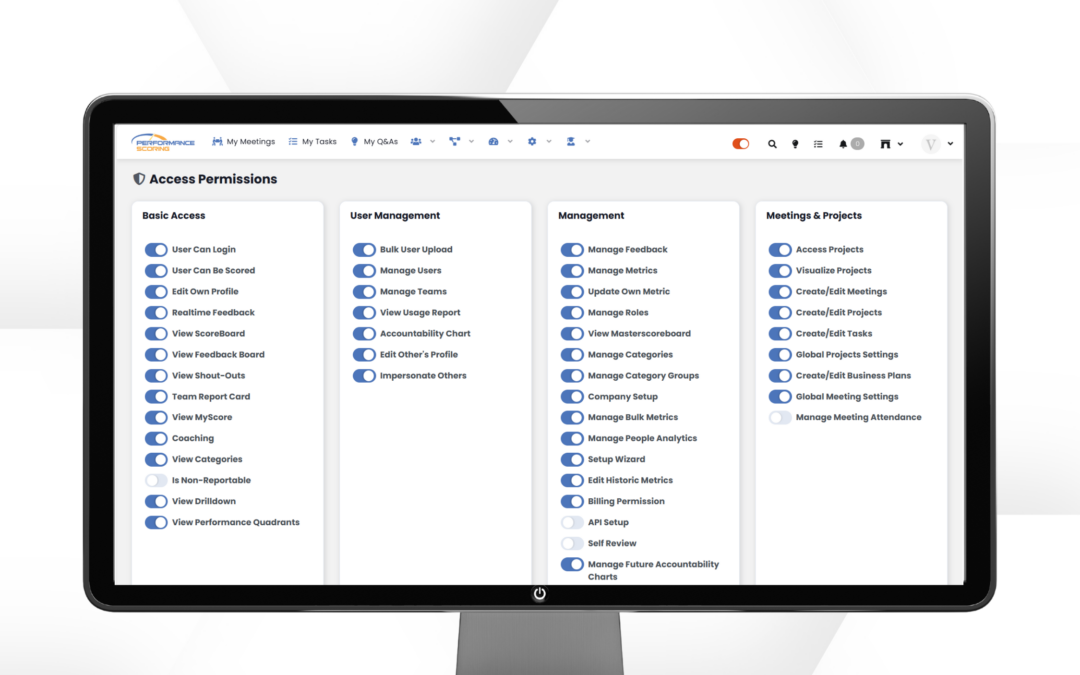
Role permissions in Performance Scoring control what users can access and manage within the platform. Assigning the correct permissions ensures team members have the tools they need to perform their roles while maintaining clarity, security, and accountability. This guide provides a simple overview to help you understand, assign, and manage role permissions effectively.
Viewing Role Permissions
Role permissions determine what users can see and access within Performance Scoring. To review permissions, navigate to the role or user settings and open the permissions view to see which features, tools, and sections are enabled. This visibility helps ensure users have the right level of access based on their responsibilities.
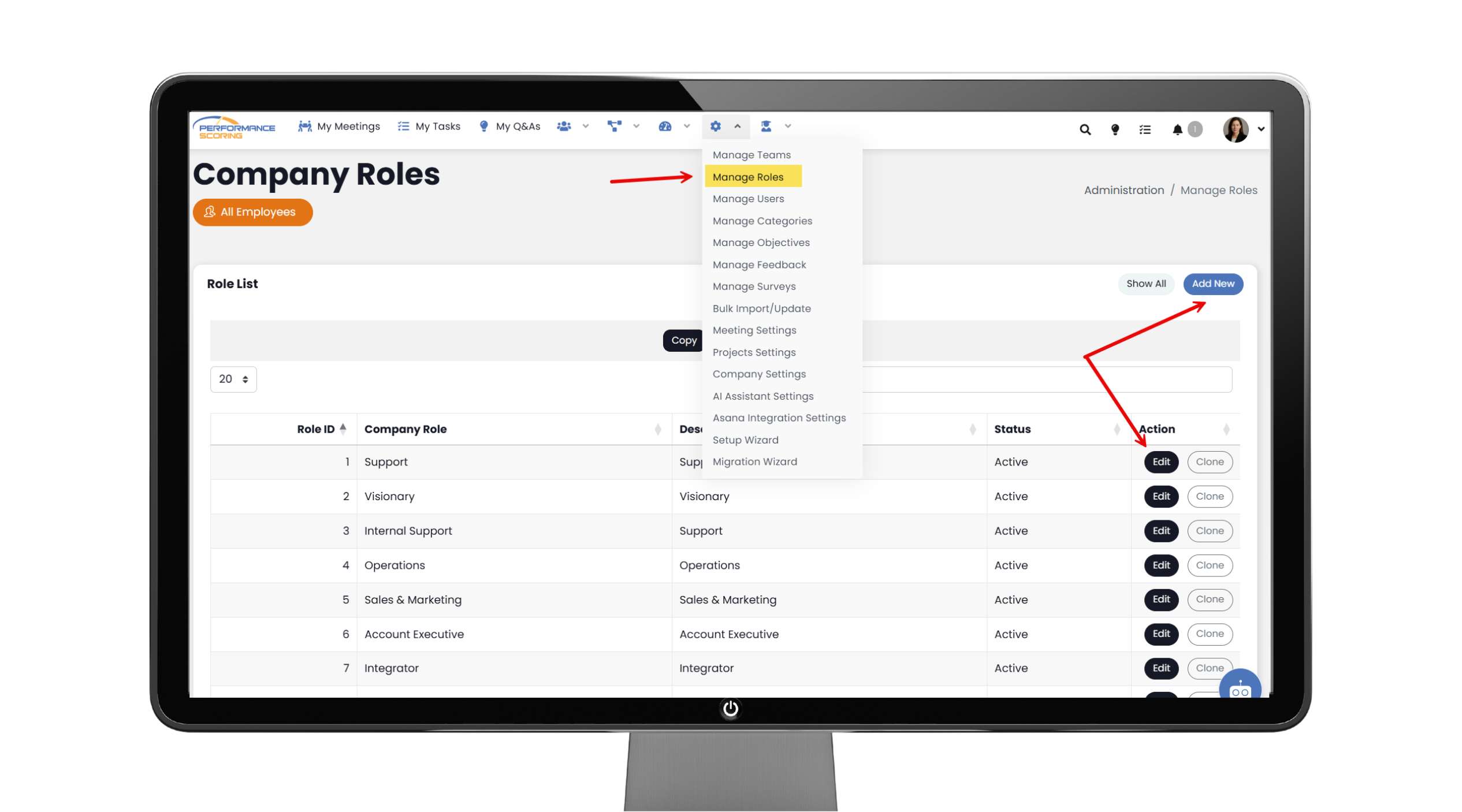
Navigation: Administration > Manage Roles > Edit role or Add New – then scroll to the bottom
Editing Role Permissions
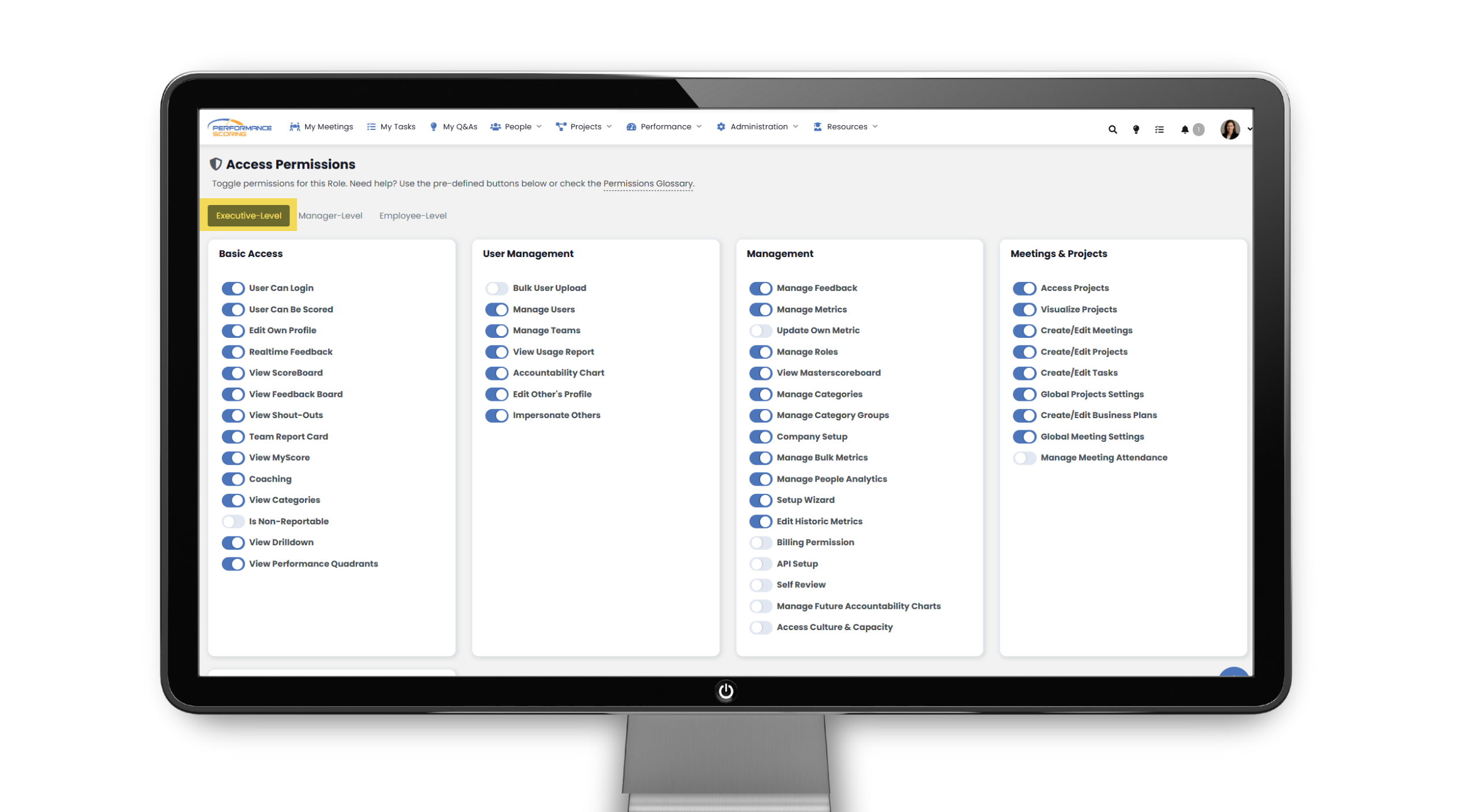
The Executive, Manager, and User tabs under Permissions represent different levels of access within Performance Scoring. Executive permissions provide visibility and control over strategic planning, reporting, and company-wide settings. Manager permissions support team oversight, including managing meetings, tasks, and performance, while User permissions are designed for individual contributors to manage their own work without access to administrative or strategic areas.
If you have permission to make changes, you can adjust role permissions by selecting the appropriate options for each role. Permissions control access to meetings, business plans, dashboards, and administrative features, and changes take effect immediately. Be sure to review your selections carefully before saving.
Best Practices for Managing Permissions
Assign permissions based on roles rather than individuals to keep access consistent as your team grows or changes. Limit administrative permissions to only those who need them to maintain data integrity and security. Reviewing permissions regularly helps ensure alignment as responsibilities evolve.
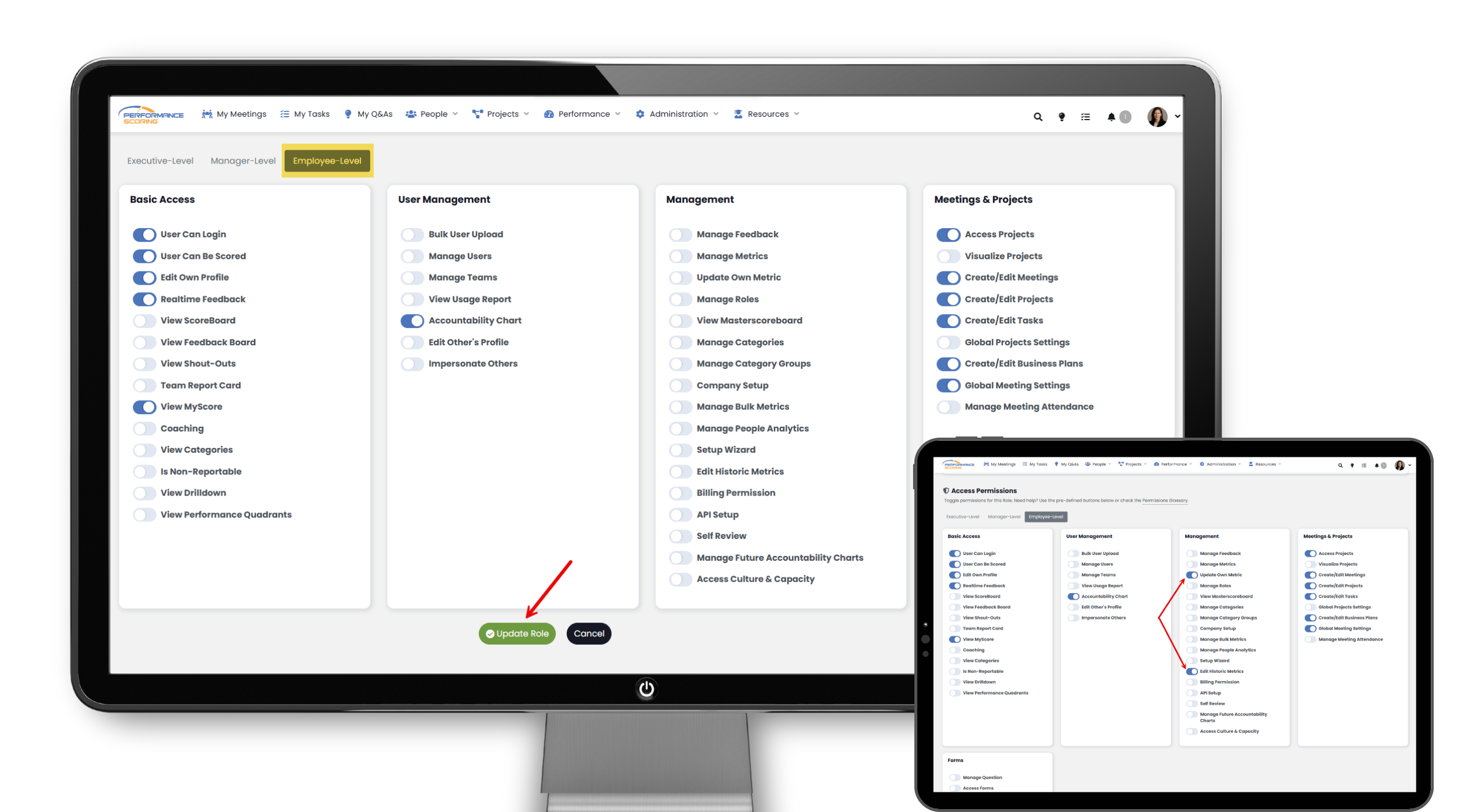
Once the permissions are set, click Update Role.
If you want users to update their own metrics, scorecard, and performance data, enable Update Own Metrics and Edit Historic Metrics. These permissions allow users to manage and maintain their performance data accurately over time.
➜ See full Knowledge Base training article here.
>Up Next: Accountability Chart Training in Performance Scoring